
In Canvas you can add video and audio via Kaltura in a course using Pages, directly to a Module, or anywhere the content editor is available (e.g., announcements, discussion board, assignment submission, etc.).
Add Kaltura to Pages /Content Editor
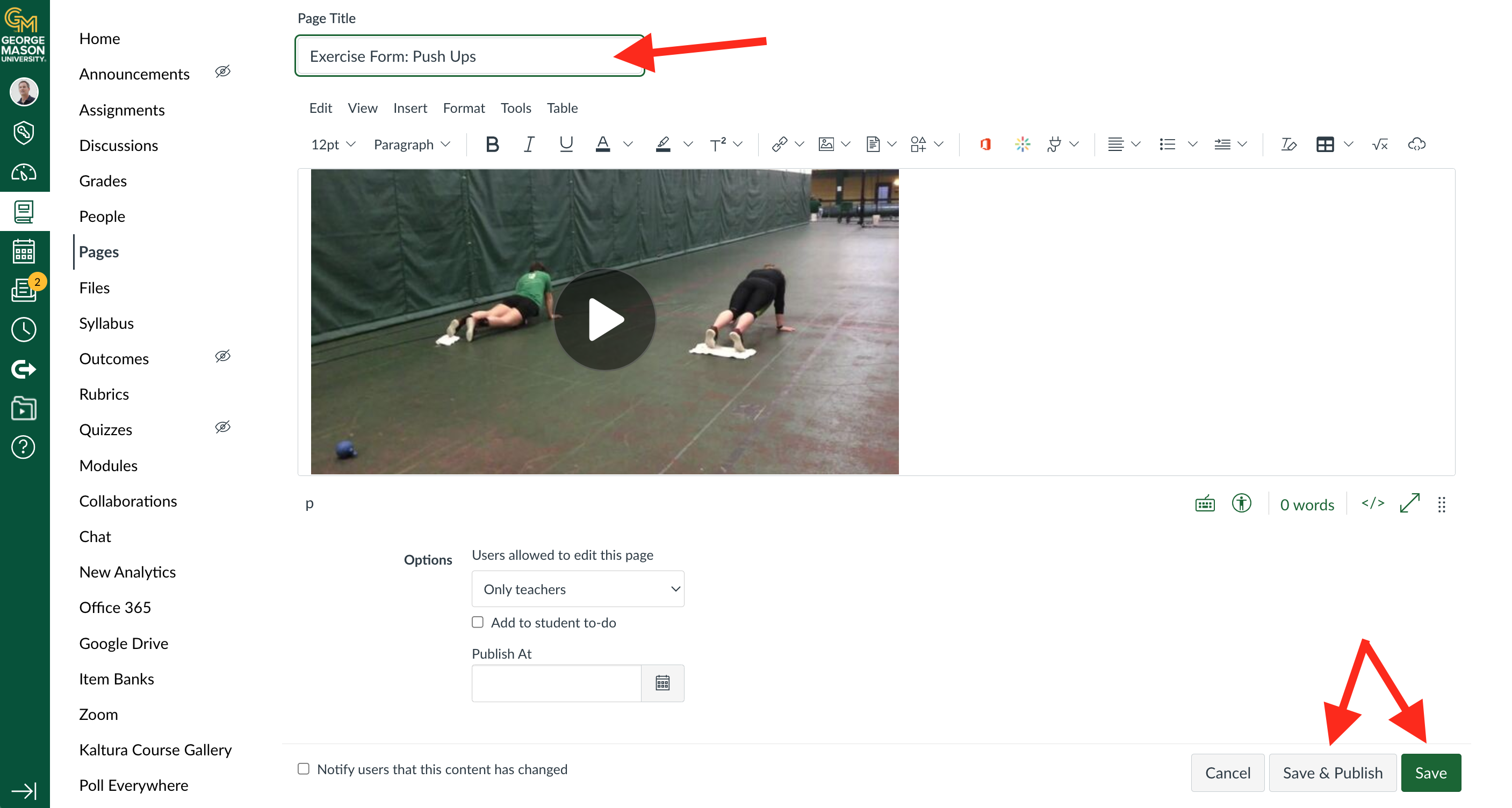
Give your Page a title and then choose Save and Publish or Save
Step 1
Create or navigate to Pages (or any other location) where you want your video to be placed.
Step 2
Click the Kaltura Icon button.

Step 3
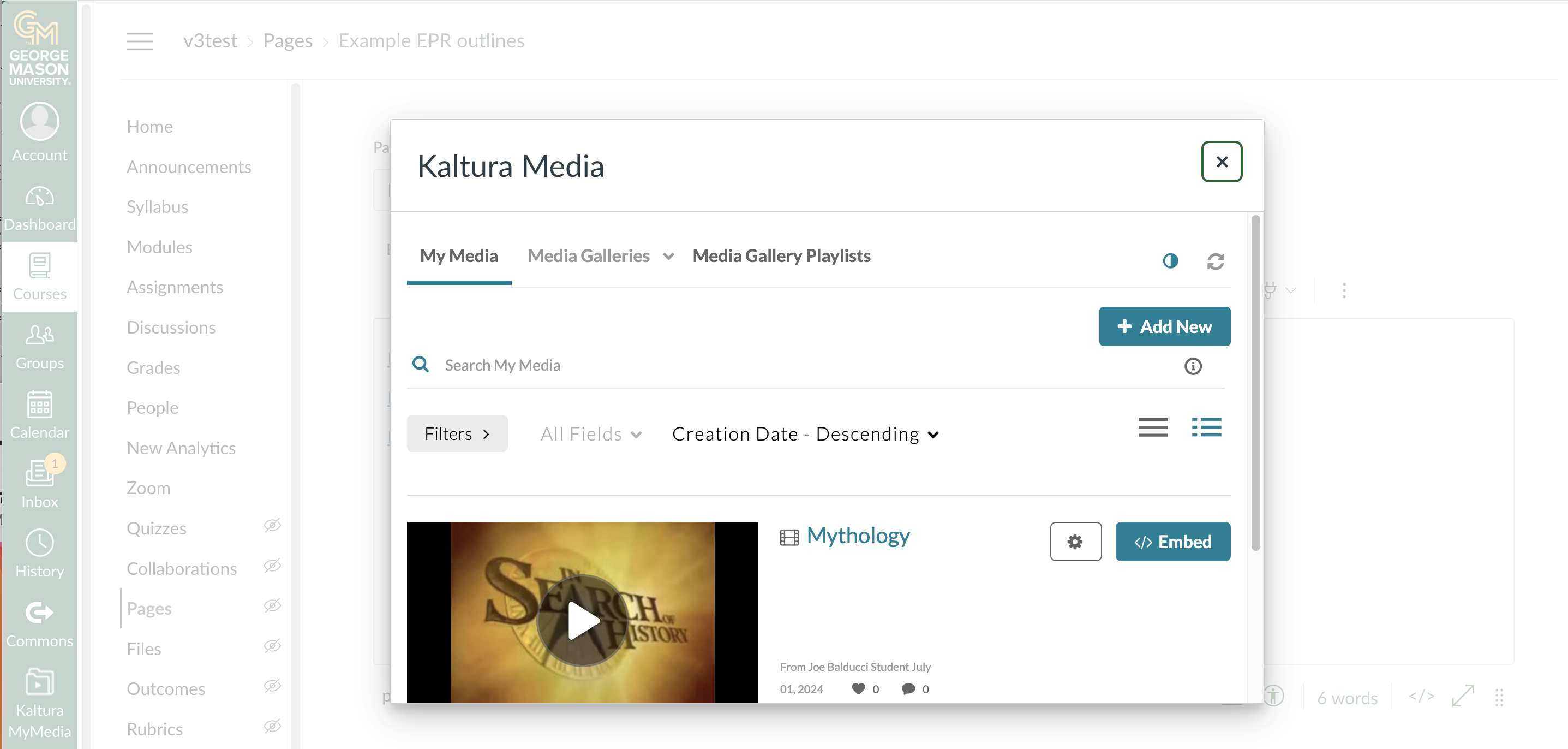
In the pop-up window, Kaltura MyMedia, choose Add New (to upload/create video) or click Embed next to existing media you would like to publish.
Step 4
Add Kaltura to Modules
Step 1
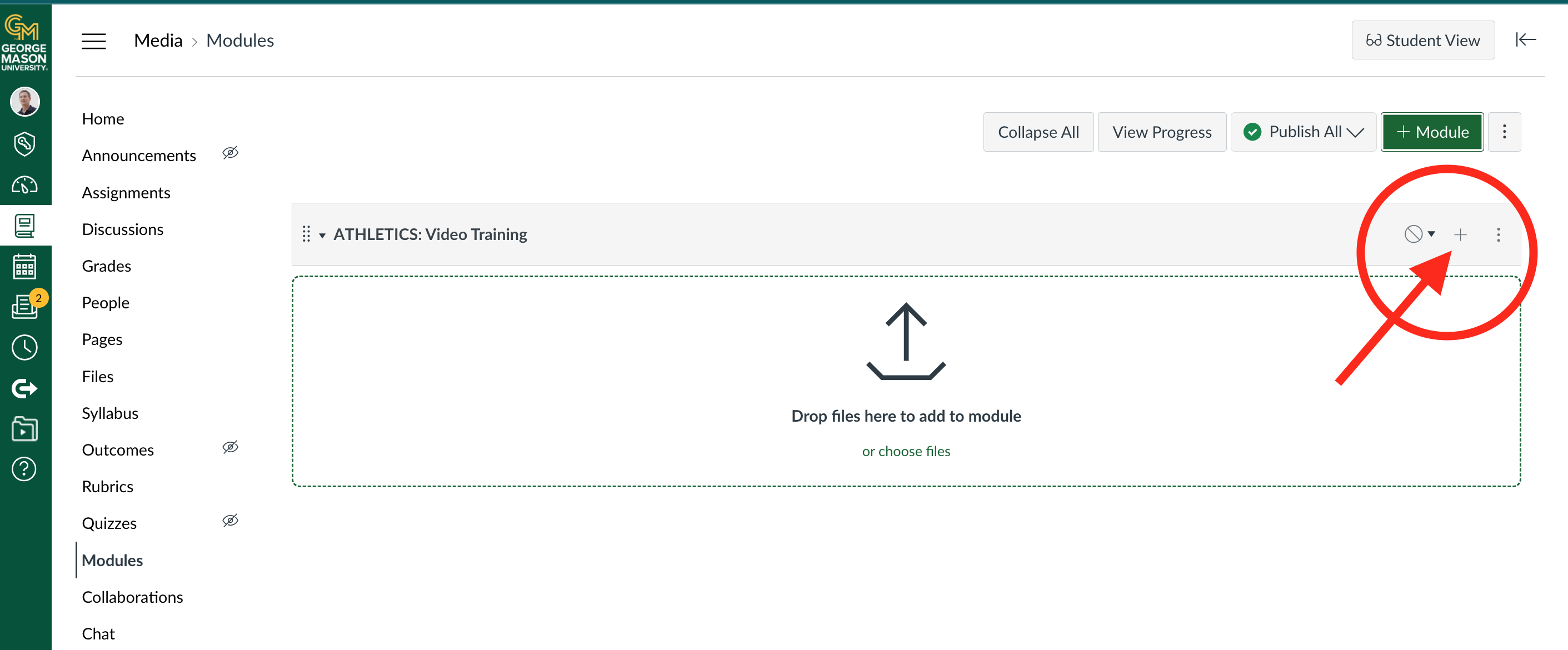
Create or navigate to a Module and then Select the + icon.
Step 2
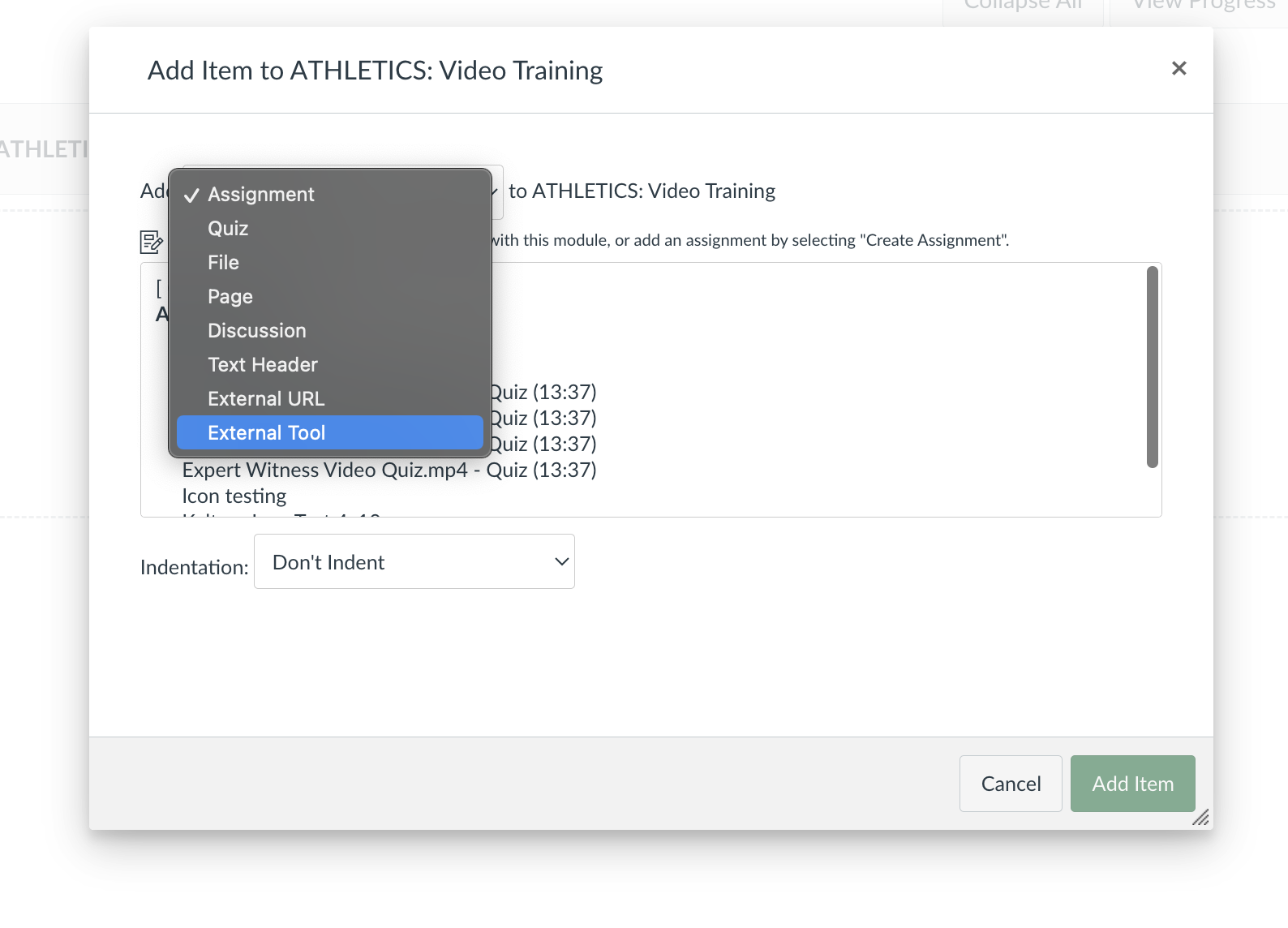
In the pop up menu select External tools in the Add: To field.
Step 3
Choose Kaltura Media from the external tools menu list

Step 4
In the pop-up window, choose Kaltura MyMedia. Then either choose Add New (to upload/create video) or Embed then Add Item to select an existing video.