
How to Switch Projects in MicroStrategy
Purpose
Switch to another MicroStrategy project that you have permission to access.
Prerequisite
You must have access to more than one MicroStrategy project. Available projects may include Mason Summary Reports, Report Consumer Tutorial, Academic, Administrative, Business Intelligence Dashboards, and Patriot Reporting.
From a project home page, locate the Mason logo in the upper-left corner.
Users with access to multiple projects often need to switch projects in MicroStrategy. To do that, you will need to use the Mason logo on the top left corner of the project’s home page.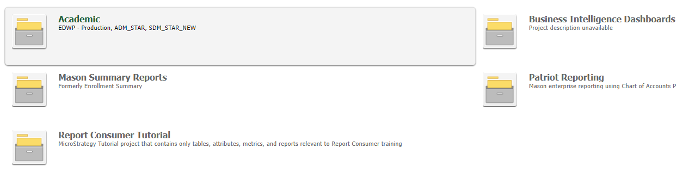
Mason Summary Reports and Report Consumer Tutorial are available to all Mason faculty and staff.
Instructions
- Move the pointer over the Mason logo to display the small triangle.

- Select the triangle to open the menu.
- Select Projects.
- Select one of the following options:
- Select All Projects to return to the main project page, and then select a project.
- Select a project name, such as Patriot Reporting, to open it directly.
Expected Result
The selected project opens and displays its home page and available reports.
Troubleshooting
If a project does not appear in the project list, your account may not have permission to access it. Contact IT Support for assistance.
Need Help?
IT Support 24/7
its.gmu.edu
703-993-8870